PDF to JPG vs. JPG to PDF: Choosing the Right Resolution and Margins
When to rasterize PDF pages into JPGs for slides, and how to frame scanned photos back into print-ready PDFs.
Trijsoft
Application Security Lead · Focuses on browser file validation, isolated storage architecture, and privacy-preserving web utilities.
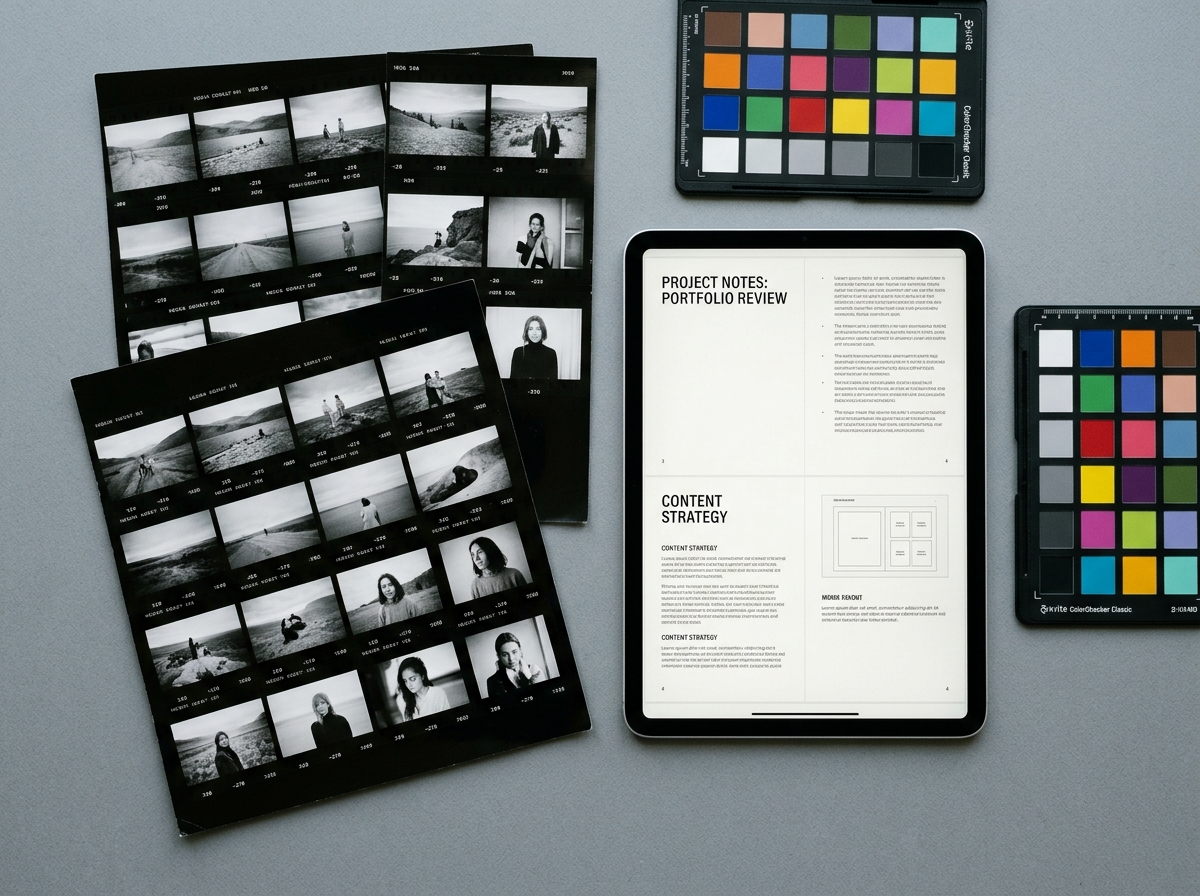
Selecting 150 DPI vs. 300 DPI for PDF to JPG
Exporting at 150 DPI produces lightweight JPG images suited for slide decks, email previews, and web articles. Step up to 300 DPI whenever viewers need to zoom into fine architectural labels or dense tabular figures.
Framing scans cleanly with JPG to PDF
When bundling smartphone photos of receipts or signed pages into a PDF, enable small or standard white margins so office printers do not clip near the sheet border, and use automatic orientation to keep mixed portrait and landscape images upright.
Try These PDFly Tools
Apply the workflow from this guide directly with PDFly.
Related Guides

Reducing PDF File Size for Email Without Blurring Crisp Text
Understand why PDFs grow unexpectedly large and which compression settings shrink megabytes while keeping vector typography sharp.
How to Merge Multiple PDF Reports Into One Clean Packet
Organize client proposals, appendices, and scanned signatures into a single sequential PDF without breaking margins or bookmarks.